
Design2GarmentCode: Turning Design Concepts to Tangible Garments Through Program Synthesis
Feng Zhou, Ruiyang Liu, Chen Liu, Gaofeng He, Yong‑Lu Li, Xiaogang Jin, Huamin Wang. CVPR 2025 .
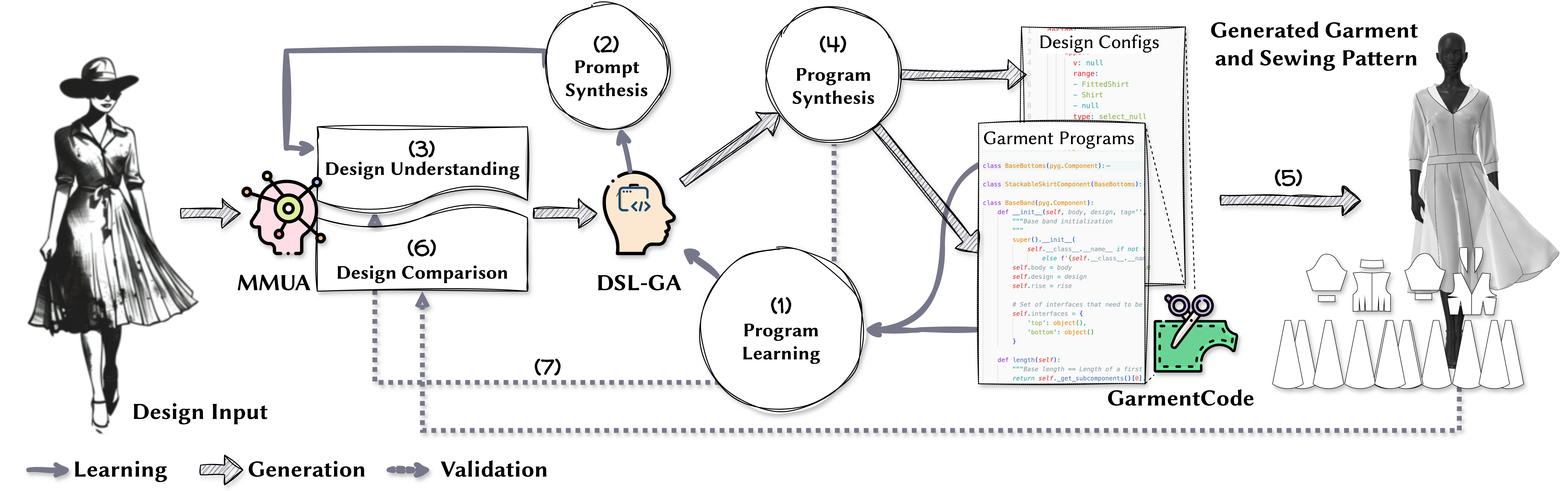 we propose a novel
sewing pattern generation approach Design2GarmentCode
based on Large Multimodal Models (LMMs), to generate parametric pattern-making programs from multi-modal
design concepts
we propose a novel
sewing pattern generation approach Design2GarmentCode
based on Large Multimodal Models (LMMs), to generate parametric pattern-making programs from multi-modal
design concepts

Installation
1. Clone the repository
git clone https://github.com/your-org/design2garmentcode.git   # ← replace with the real URL
cd design2garmentcode
2. Create the Conda environment
An environment.yml file is provided in the project root with all required Conda and PyPI dependencies (Python 3.9.19, Torch 2.4.0 + CUDA 12.1, etc.).
conda env create -f environment.yml
conda activate d2g
python -m pip install --upgrade pip          # optional: upgrade pip
3. (Optional) Enable 3‑D simulation
If you need local cloth simulation and 3‑D visualization, follow the installation instructions for GarmentCode Warp Simulator:
https://github.com/maria-korosteleva/NvidiaWarp-GarmentCode
4. Language‑Model API
Design2GarmentCode communicates with large multimodal models.
Follow the steps in the given order:
- Provide API credentials
- Environment variable (recommended) – defaults to ChatGPT‑4o
export OPENAI_API_KEY="sk‑..." - Edit
system.json(project root) – manually specifyapi_key,base_url, andmodelif you prefer a file‑based approach.
- Environment variable (recommended) – defaults to ChatGPT‑4o
- Download the required models:
-
First, download the base model Qwen2-VL-2B-Instruct.
Place the entire folder at:
lmm_utils/Qwen/Qwen2-VL-2B-Instruct/ -
Next, download the fine-tuned weights file model.pth,
and place it in:
lmm_utils/Qwen/qwen2vl_lora_mlp/
-
Quick GUI Demo
python gui.py

- Input: Free‑form prompt or an image/sketch
- Output: GarmentCode JSON, preview image, and (optionally) physics simulation
1. Text-Guided Pattern Generation
- Go to the PARSE DESIGN tab.
- In the input box at the bottom ("Describe your design..."), type a natural language description of the garment.
e.g., a T-shirt - Click SEND to generate patterns based on your description.
2. Image-Guided Pattern Generation
- Click the upload icon inside the input box to upload a reference image or sketch.
- Once the image is uploaded, click SEND to parse the design and generate corresponding patterns.
3. Modify Patterns in the GUI
Once a pattern is generated, you can refine it directly inside the GUI:
- Focus the input box at the bottom.
- Type
modify: <your-instruction>- e.g.,
modify: make sleeves shorter
- e.g.,
- Press Enter – the system will regenerate the pattern accordingly.
Batch Inference
1. Text Guided Generation
Use test_text_batch.py to process a list of text descriptions from a JSON file.
python lmm_utils/test_text_batch.py \
  --input assets/test_text/examples.json \
  --output assets/test_text_result \
  --sim
--input: Path to your input JSON file containing multiple garment description texts.--output: Directory where the output.jsonfiles will be saved.--sim: Enable or disable physical simulation output. Supports physical simulation (enabled by default in script).
2. Image Guided Generation
Use test_picture_batch.py to process all image files in a directory.
python lmm_utils/test_picture_batch.py \
  --input assets/test_img/examples \
  --output assets/test_image_result/examples \
  --sim
--input: Folder containing multiple image files.--output: Output folder where results will be saved.--sim: Enable or disable physical simulation output.
Get 3D Garment Patterns
1. Generate from a pattern.json
After generating the pattern data, you can simulate the corresponding 3D output directly from the pattern's JSON file.
python test_garment_sim.py --pattern_spec $INPUT_JSON
2. Generate from gui
You can also run the simulation directly on the GUI to obtain 3D data.
python gui.py
Citation
If you find this work useful, please cite:

```bibtex
@article{zhou2024design2garmentcode,
  title={Design2GarmentCode: Turning Design Concepts to Tangible Garments Through Program Synthesis},
  author={Zhou, Feng and Liu, Ruiyang and Liu, Chen and He, Gaofeng and Li, Yong-Lu and Jin, Xiaogang and Wang, Huamin},
  journal={Computer Vision and Pattern Recognition (CVPR)},
  year={2025}
}